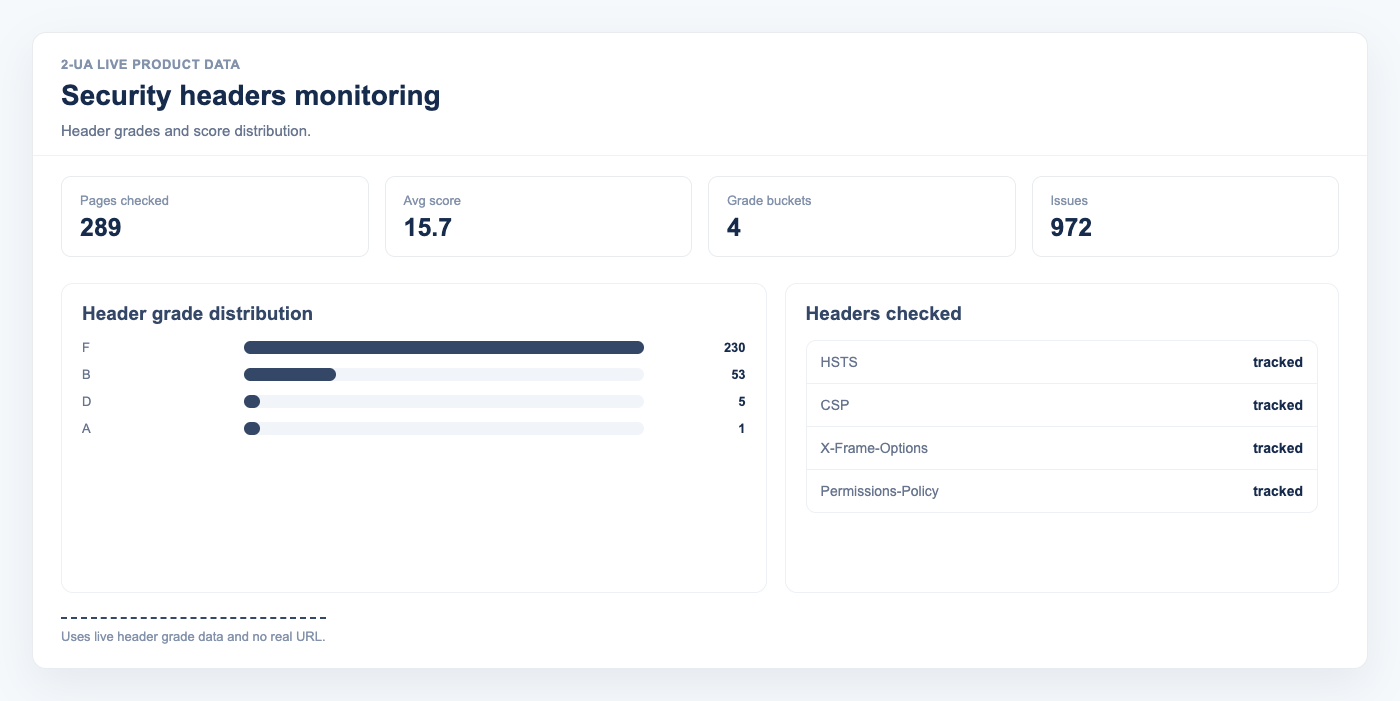
Security headers monitoring checks the HTTP response headers of your tracked URLs on every desktop content check and scores each page from 0 to 100. No extra configuration is required — headers are collected automatically.
How to view security headers for a tracked URL
- Open your website project and go to Tracked URLs.
- Click the Quick menu button next to any tracked URL.
- Select Security headers from the dropdown.
-
You will see:
- The current grade (A–F) and score (0–100).
- The date of the last check.
- A table with each security header: its current value, status (Present / Missing), description, and recommended value.
How to view the site-wide security summary
- Open your website project page.
- In the project menu, click Security headers.
- The summary table shows all tracked URLs with their grade, score, and per-header indicators.
- URLs are sorted by score ascending, so the most vulnerable pages appear first.
How the score is calculated
- Strict-Transport-Security (HSTS) — 20 pts (+5 bonus for
includeSubDomains) - X-Content-Type-Options — 15 pts (must be
nosniff) - X-Frame-Options — 15 pts (must be
DENYorSAMEORIGIN) - Content-Security-Policy — 25 pts
- Referrer-Policy — 15 pts
- Permissions-Policy — 10 pts
Grades: A ≥ 90, B ≥ 75, C ≥ 50, D ≥ 25, F < 25.
Note: Security headers are collected during desktop content checks only.
The record is updated on every check, so the grade reflects the most recent response.
If you fix a missing header and want to see updated results immediately, trigger a manual content check.
Still need help?
Ask us about this workflow
Send the page or report you are working with and describe where you are stuck.