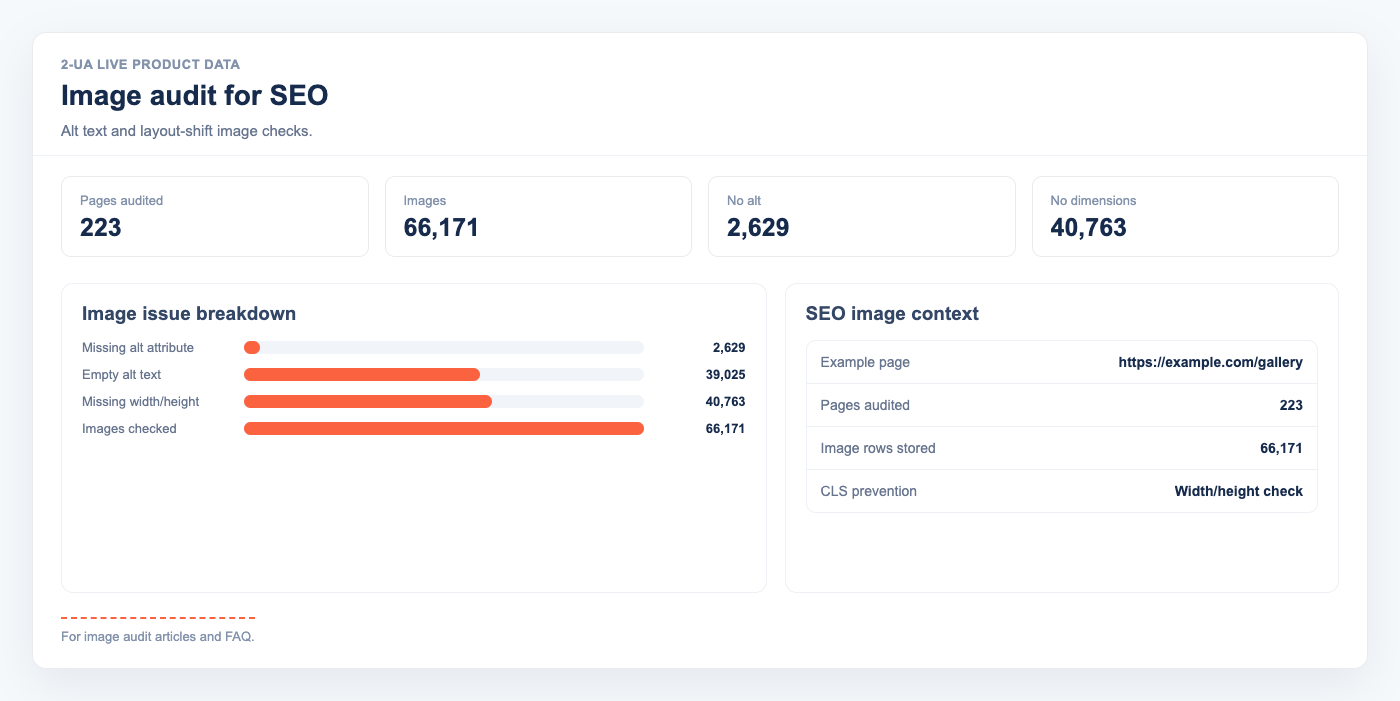
Image audit automatically scans all <img> tags on a tracked URL during every desktop content check
and reports on alt text coverage and dimension attributes. No extra configuration is required.
How to view the image audit for a URL
- Open your website project and go to Tracked URLs.
- Click the Quick menu button next to any tracked URL.
- Select Image audit from the dropdown.
-
You will see:
- Total images — all
<img>tags found on the page. - Missing alt — images with no
altattribute (SEO and accessibility issue). - Empty alt — images with
alt=""(intentionally decorative). - No dimensions — images without
widthorheightattributes (potential CLS issue).
- Total images — all
- The detail table shows every image with its src, alt, width, height, and loading attribute.
How to view the site-wide image audit summary
- Open your website project page.
- Click Image audit in the project menu.
- The summary table shows all tracked URLs with total images, missing alt, empty alt, and no-dimensions counts.
- URLs are sorted by missing alt descending — the most problematic pages appear first.
What the badges mean
- Missing (red) — the
altattribute is absent entirely. Fix for SEO and accessibility. - Empty (decorative) (grey) —
alt=""is set intentionally. This is correct for icons and spacers. - Yellow warning on width/height — missing dimensions may cause Cumulative Layout Shift (CLS).
Note: Image audit is collected during desktop content checks only.
Up to 500 images per URL are stored. If you fix a missing alt and want updated results immediately,
trigger a manual content check for that URL.
Still need help?
Ask us about this workflow
Send the page or report you are working with and describe where you are stuck.