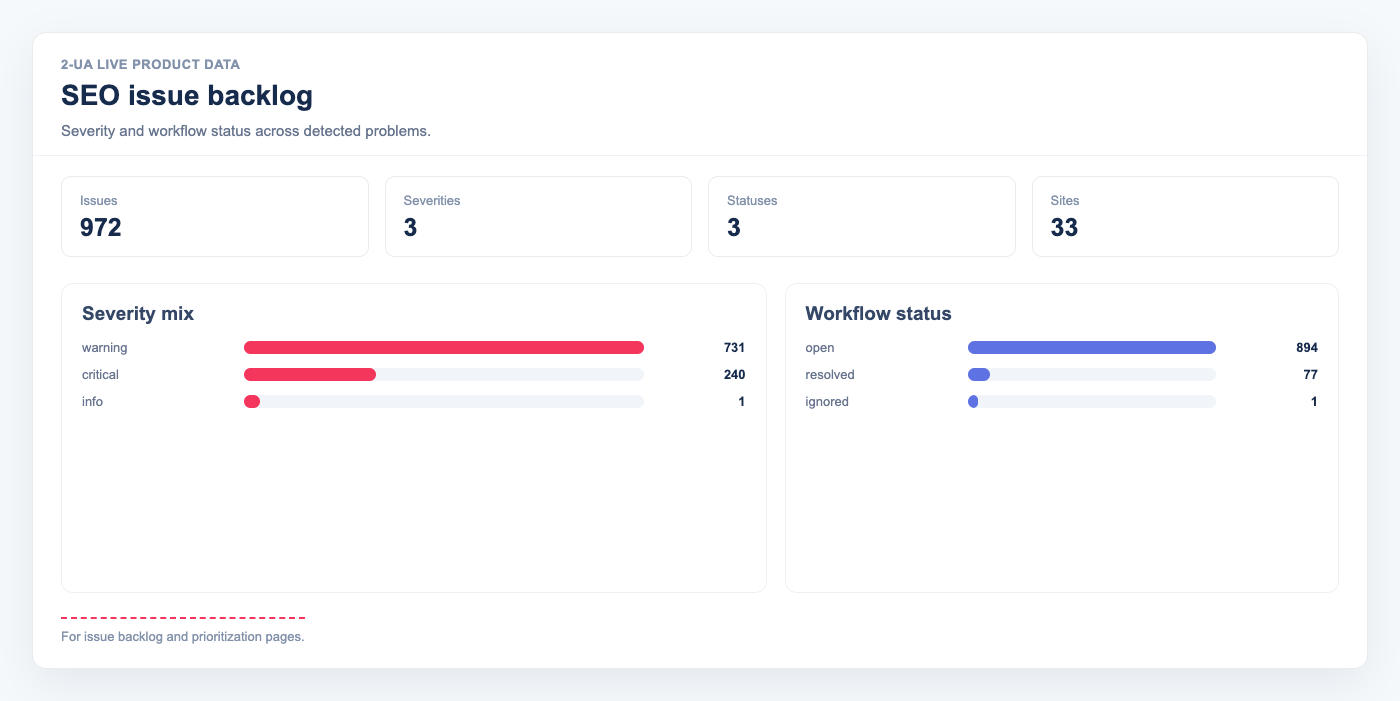
What is the Issue Backlog?
The Issue Backlog is a unified list of all SEO and reliability problems detected across your tracked URLs. Instead of checking separate reports for security, images, Schema.org, W3C, and PageSpeed, you get one prioritised view. Issues are sorted by severity: critical first, then warnings, then info.
Where to find it
There are two entry points:
- All sites: Main navigation → Issues — shows every open issue across all your websites in one table.
- Per site: Site overview → Issue Backlog card — shows issues for that site only.
What types of issues are detected?
The backlog aggregates issues from all 2-UA checks:
- HTTP status mismatch (4xx / 5xx)
- Redirect target mismatch
- Empty or duplicate title tag
- Canonical tag count or mismatch
- Security headers grade D / E / F
- Images missing alt attribute
- Invalid Schema.org JSON-LD blocks
- W3C HTML errors and warnings
- PageSpeed performance or SEO score below 50
- Real-user LCP / CLS / INP (CrUX) in yellow or red zone
- SSL certificate expiring within 30 days
- Domain registration expiring within 30 days
What do the statuses mean?
- Open — problem was detected in the latest daily run.
- Resolved — problem existed before but is no longer detected. No action needed.
- Ignored — you dismissed the issue. It will not reappear even if the problem continues.
How do I dismiss a false positive?
Enter a reason and click Ignore with reason next to the issue. An ignored issue is never reopened automatically. If you want to revisit it later, filter by Ignored and click Reopen.
How often are issues updated?
Once per day, after all checks (PageSpeed, CrUX, W3C, Schema.org, security headers) have completed. New issues trigger a notification to your configured Telegram and Slack channels.
Will I get a notification for every issue every day?
No. Notifications are sent only for new issues — issues that appeared for the first time in the latest run, or issues that were resolved and then reappeared. Existing open issues do not generate a repeat notification.
Ask us about this workflow
Send the page or report you are working with and describe where you are stuck.